[Solved] Using Mail Merge with SQL and .dat

Writing a book, Automating Document Production - Discuss your special needs here
Post Reply
dustboy
Posts: 4
Joined: Thu Jan 16, 2014 6:41 pm

[Solved] Using Mail Merge with SQL and .dat

Post by dustboy »

Hi all,
I use Mozaik to design and automate custom cabinet manufacturing. It will print labels for the cabinet parts via MS Word mail merge, but I have a mild allergy to MS products.

Here is Mozaik's tutorial for printing the labels.https://sites.google.com/site/mozaikhel ... ing-labels When it comes to three-letter acronyms like "SQL" I'm lost. Can you help me find a workaround so I can use OOo?

Thanks!

 Edit: The link requires a Google ID and password -- MrProgrammer, forum moderator  
Last edited by dustboy on Thu Jan 23, 2014 8:16 pm, edited 1 time in total.
OpenOffice 4.0.1 on Windows 8
User avatar
Villeroy
Volunteer
Posts: 31361
Joined: Mon Oct 08, 2007 1:35 am
Location: Germany

Re: Using Mail Merge with SQL and .dat

Post by Villeroy »

You noticed that the link has nothing to do with OpenOffice? It is about MS Word.

You have a letter template?
You have a list of addresses? What kind of list? Where do the address data come from?
Please, edit this topic's initial post and add "[Solved]" to the subject line if your problem has been solved.
Ubuntu 18.04 with LibreOffice 6.0, latest OpenOffice and LibreOffice
dustboy
Posts: 4
Joined: Thu Jan 16, 2014 6:41 pm

Re: Using Mail Merge with SQL and .dat

Post by dustboy »

Yes, I was just hoping it would give you some clues on what the process is and where the data comes from.

I have a template provided by Mozaik, that comes up just fine. When I go through the mail merge wizard though, I can add the list (.dat file) to the "Select address list" window but if I select it, the OK button is not clickable.

I also tried to work through the "Address Book Data Source" wizard per the OOo manual, but I don't understand any of the options.
OpenOffice 4.0.1 on Windows 8
User avatar
Villeroy
Volunteer
Posts: 31361
Joined: Mon Oct 08, 2007 1:35 am
Location: Germany

Re: Using Mail Merge with SQL and .dat

Post by Villeroy »

OK, the data come from some software called "Mozaik" and of course it has some database in it which it exposes itself to MS Word somehow. It is very likely that the same database within "Mozaik" can be connected with OpenOffice. But how can we know that? Only Mozaik can tell.
You mention a .dat file. This may be some relevant file that has been exported from "Mozaik" or not. How can we know? That file is on your computer.
Please, edit this topic's initial post and add "[Solved]" to the subject line if your problem has been solved.
Ubuntu 18.04 with LibreOffice 6.0, latest OpenOffice and LibreOffice
Flaxthejute
Posts: 59
Joined: Wed Nov 28, 2007 6:23 pm
Location: Scotland

Re: Using Mail Merge with SQL and .dat

Post by Flaxthejute »

If you start with this page on the wiki, it should give you enough info to translate your work to Aoo from Word.

The Mosaik documentation you linked to suggests that the .dat file is an SQL database, so if you choose an SQL database option in the data source wizard, that may lead you in the right direction.
LibreOffice 7.4ish on Windows 10 (home sweet home) and LibreOffice 7.4something on a Peppermint Devuan-running ex-chromebook.
dustboy
Posts: 4
Joined: Thu Jan 16, 2014 6:41 pm

Re: Using Mail Merge with SQL and .dat

Post by dustboy »

I've attached the .dat file, does that help? (forum won't allow a .dat to upload, I changed the file extension to .txt).
PartData.txt
(969 Bytes) Downloaded 232 times
I'm still not sure which of the options in the data source wizard to select, if I choose "other external data source", there are three SQL options in the following dialog.
OpenOffice 4.0.1 on Windows 8
rudolfo
Volunteer
Posts: 1488
Joined: Wed Mar 19, 2008 11:34 am
Location: Germany

Re: Using Mail Merge with SQL and .dat

Post by rudolfo »

The file PartData.txt is a classical csv file: A header line with the names of the fields (or columns) followed by several data lines that use comma to separate the content of each line into several fields.

This kind of file can be easily used as a file based database with the help of Base. You will need to create a Base .odb file that makes your PartData.csv file available to all OpenOffice Applications.
  1. Find an empty directory and copy the PartData.txt file in this directory. If you change the extension from .txt to .csv the following steps will be a bit easier, because you can work with the defaults. Do this with your favorite file manager (Windows Explorer, Norton Commander, cmd.exe, etc.). You don't need OpenOffice at this point.
  2. Now start Openoffice and choose the database wizard. On the first page select the last option "Connect to an existing database", but instead of the pre-selected JDBC you go down and select "Text", click [Next] and you will see the dialog shown below.
  3. In Path to text files you have to specify the directory where your file (many files) live. I repeat what's needed here is the directory, not the full pathname of the csv file itself!
  4. As I have chosen the second Option "Comma separated value" files, the comma was preselected as the field separator in the final section "Row Format". I have changed the text separator (which is a wrong name, because what's needed here is the text delimiter) from the double quotes to None, simply because your data file doesn't use text delimited by quotes.
  5. A click on [Next] brings you to the final screen which you can simply leave as it is.
  6. Click on finish and you will be asked for a filename. This will be a .odb Base file with all that configuration that you have just specified in the Wizard. And at this stage it is really nothing more than a file with configuration. There is no database in it. It links to a database (backend) file, but it doesn't contain a database. It is common practise to save the .odb file in the parent directory of the directory where your data csv.file(s) live. Generally you can save this .odb file at any place you want. But keeping them in closely related directories allows you to give your database to others. You have to give them both: the .odb file in the parent directory and the subdirectory with the csv data files. If you store this structure into a zip archive the .odb file of the unpacked archive will find the the subdirectory with the csv files also on another computer.
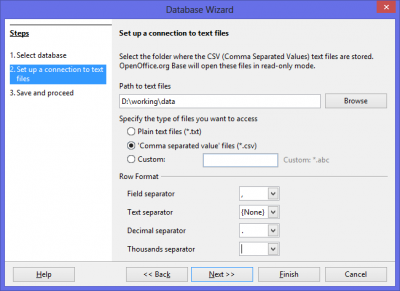
Database Wizard, step 2
Once the .odb file is completed you can open it and you will see each .csv file as a table on its own. In this case it is only one: PartData. The name of the table is the name of the file without the extension.
If you double click on it you will see a grid view of the table data.
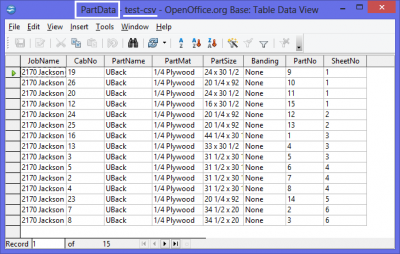
csv Data in the Gridview
If you have registered your .odb file (which is the default on step-3 of the wizard) you can now use your csv file as datasource
for a mail merge in Writer or for database ranges in Calc.
OpenOffice 3.1.1 (2.4.3 until October 2009) and LibreOffice 3.3.2 on Windows 2000, AOO 3.4.1 on Windows 7
There are several macro languages in OOo, but none of them is called Visual Basic or VB(A)! Please call it OOo Basic, Star Basic or simply Basic.
Post Reply